
Azure (AKS)
Deploy Verifiable Containers on AKS with SEV-SNP PodVMs.
Verifiable Containers runs on AKS with AMD SEV-SNP and Intel TDX PodVMs through the Cloud API Adaptor (CAA / Peer Pods) deployment model. On Azure, this walkthrough uses an Azure Marketplace deployment (a Bicep template plus a Terraform wrapper) that provisions the cluster, the CAA identity, and CoCo plus Peer Pods in one shot.
What gets deployed
The reference deployment provisions:
- An AKS cluster with confidential-VM-capable Peer Pod nodes.
- Networking sized for AKS plus Peer Pod confidential VMs (VNet plus subnets).
- The CAA user-assigned managed identity, its RBAC, and a federated credential for workload identity.
- A PodVM gallery image, referenced by resource ID or imported from a VHD SAS URL.
- CoCo plus Peer Pods installed with the Kata-remote profile via Helm.
The same Bicep template handles initial creates and in-place updates.
Prerequisites
- Subscription access to create AKS clusters, managed identities, and role assignments.
- A region with AMD SEV-SNP
Standard_DC*as_v5orv6capacity. - An Azure PodVM image URL from the deployment artifacts page.
- The
azCLI, logged in. - A user with the following
- Contributor
- Role Based Access Control Administrator
Deploy the cluster
-
Log in to the Azure Portal at https://portal.azure.com.
-
Visit the deploy UI at https://azure-vcoco.prod.eqtylab.io.
-
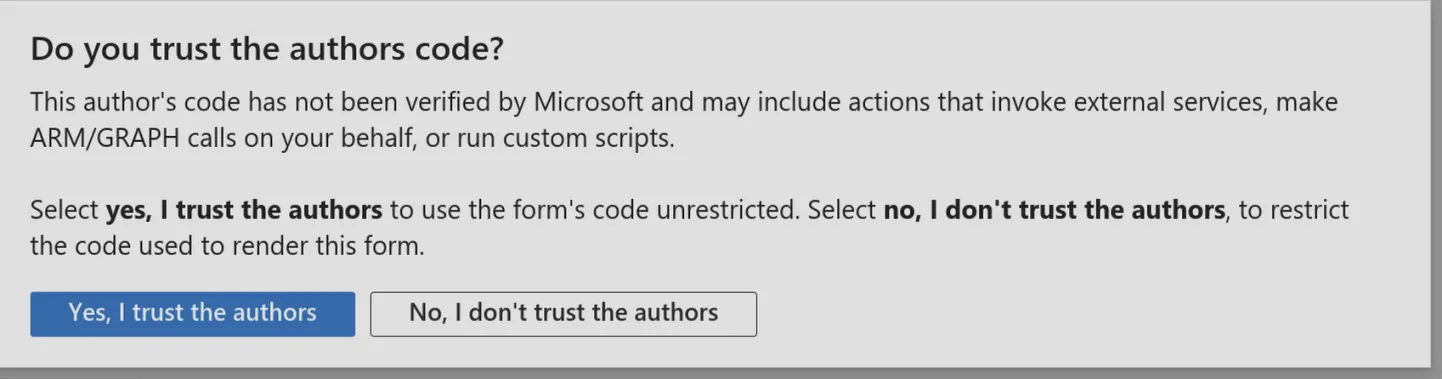
Trust the author’s code.
-
Select a
subscription, aresource group, and aregion, then clickNext. -
Enter the
cluster namefor this cluster and clickNext. -
Enter the number of worker nodes. For most installations,
1is enough. Selected SKU should NOT be a CC sku, have more then 2 cores and 4 GB of memory.
NOTE: In the Peer Pods setup, pods do not consume the node’s local resources. Instead, each pod creates a new VM in your subscription with dedicated resources for that pod. -
Select the size of the worker
Node VMand thePeerPod VM.
NOTE: ThePeerPod VMmust be a Confidential Computing SKU, such asDC4as. -
Enter the
Confidential pod disk size (GB). This is the size of the encrypted ephemeral disk attached to each PeerPod VM. Container images and workload writes go here.128GB is a safe default. Raise it for larger images or workloads that write a lot of temporary data. Set to0to run the workload entirely in RAM, which is only viable for very small pods. -
Select the
Kubernetes version, enter aKey pair name, and clickNext. -
Enter the Azure PodVM image URL from the deployment artifacts under
PodVM download link. -
Deploy, and wait for the deployment to finish.
-
Open the cluster in Azure AKS and click
Connectto access your new Kubernetes cluster withkubectl.
NOTE: On Azure, it can take 30 minutes to configure and prepare the resources. Watch for “Your deployment is complete”.
Confirm the runtime class
Once the deployment is finished and you are connected to the cluster, validate that the runtime class is installed.
az aks get-credentials -g <rg> -n <cluster>
kubectl get runtimeclass
You should see a kata-remote (or equivalent) runtime class installed by the CoCo Helm chart. Peer Pods routes pods with that runtime class through CAA, which provisions one confidential VM per pod from the PodVM image.
Azure supported SKU
| Technology | SKU | Attestation Type | OpenHCL | Notes |
|---|---|---|---|---|
| AMD SEV-SNP | Standard_DC2ads_v5 | Hardware + vTPM | No | |
| Intel TDX | Standard_DC2eds_v5 | Hardware + vTPM | No | Sapphire Rapids |
| Intel TDX | Standard_DC2eds_v6 | Hardware + vTPM | Yes | |
| AMD SEV-SNP | Standard_NCC40ads_H100_V5 | Hardware + vTPM | No | Contains H100 GPU |
| Intel TDX | Standard_NDC96is_H200_V5 | Hardware + vTPM | Yes? | 8 H200 in PPCIe. Not Tested |
To change SKUs, node count, Kubernetes version, or the PodVM image on a running cluster, see Updating Azure Cluster.