
Operator Certificates (mTLS)
Create the certificate authority and operator certificates the CRT uses for mutual TLS (mTLS), which controls who can operate a Verifiable Container Runtime.
The CRT secures every connection to its API and web console with mutual TLS (mTLS). In ordinary TLS only the server proves its identity; with mTLS the client must also present a certificate, and the CRT refuses the connection before any request is processed unless that certificate was signed by a certificate authority (CA) you own. The connection is encrypted, and the CRT authenticates every client:
- The CRT presents its own self-signed server certificate. Browsers warn about it the first time, and the command line does not verify it.
- You present an operator certificate signed by your CA. The CRT trusts only the CA whose certificate you supply when you deploy it.
You create the CA once, then issue one operator certificate per person. The CRT records each
operator certificate’s key as the operator_did of every job that operator starts, so give
everyone their own certificate rather than sharing one.
Both methods below produce ECDSA P-256 keys and work with either the command line or the web console. Pick the one that suits you; the last section covers converting between them.
Create the CA and Operator Certificates
The CA’s certificate goes into the CRT when you deploy it; its private key signs every operator certificate.
Use vcomp-cert-cli, which is installed with the command line tools.
Create the CA
-
Generate the CA. It is valid for 10 years:
shvcomp-cert-cli ca --ca-cert ca.pem --ca-key ca.key --name EQTY-TEST1 -
Convert the CA certificate into the single-line base64 value the CRT expects. This strips the PEM armour and newline characters:
shawk '!/-----/ { printf "%s", $0 }' ca.pem > ca.singlelineThe contents of
ca.singlelinego into the Base64 Certificate that signs authorized operators of the system field when you deploy the CRT. -
Optional: bundle the CA as a
.pfxso the GUI tool can load it later. OpenSSL asks for the bundle password:shopenssl pkcs12 -export -in ca.pem -inkey ca.key -name EQTY-TEST1 -out ca.pfx
| File | Contents | Who gets it |
|---|---|---|
ca.key | CA private key | Whoever administers the CA only |
ca.pem | CA certificate | Anyone |
ca.singleline | CA certificate, base64 DER | The CRT deployment |
ca.pfx | CA certificate and key | Whoever administers the CA only |
Create operator certificates
-
Generate a certificate for the operator, signed by the CA above. Operator certificates are valid for 1 year:
shvcomp-cert-cli client --ca-cert ca.pem --ca-key ca.key \ --client-cert operator1.crt --client-key operator1.key --name operator1 -
Send the operator their
.crtand.keyfiles. Repeat for each operator.
| File | Contents | Who gets it |
|---|---|---|
operator1.crt | Operator certificate | That operator |
operator1.key | Operator private key | That operator only |
Use the CRT Certificates web tool. It generates every key in your browser tab with WebCrypto. Nothing is sent to a server or kept by the browser, so the files you download are the only copies.
Create the CA
-
Open CRT Certificates and select CA in the sidebar.
-
Under New certificate authority, fill in the Common name (defaults to
CRT Operators CA), and optionally Organization and Country. Keep Valid for (years) at 10 or change it. Operator certificates never outlive the CA. -
Enter and confirm a CA bundle password, then select Create CA and download bundle. This downloads
<ca>.ca.pfx: the CA certificate and private key, encrypted with that password.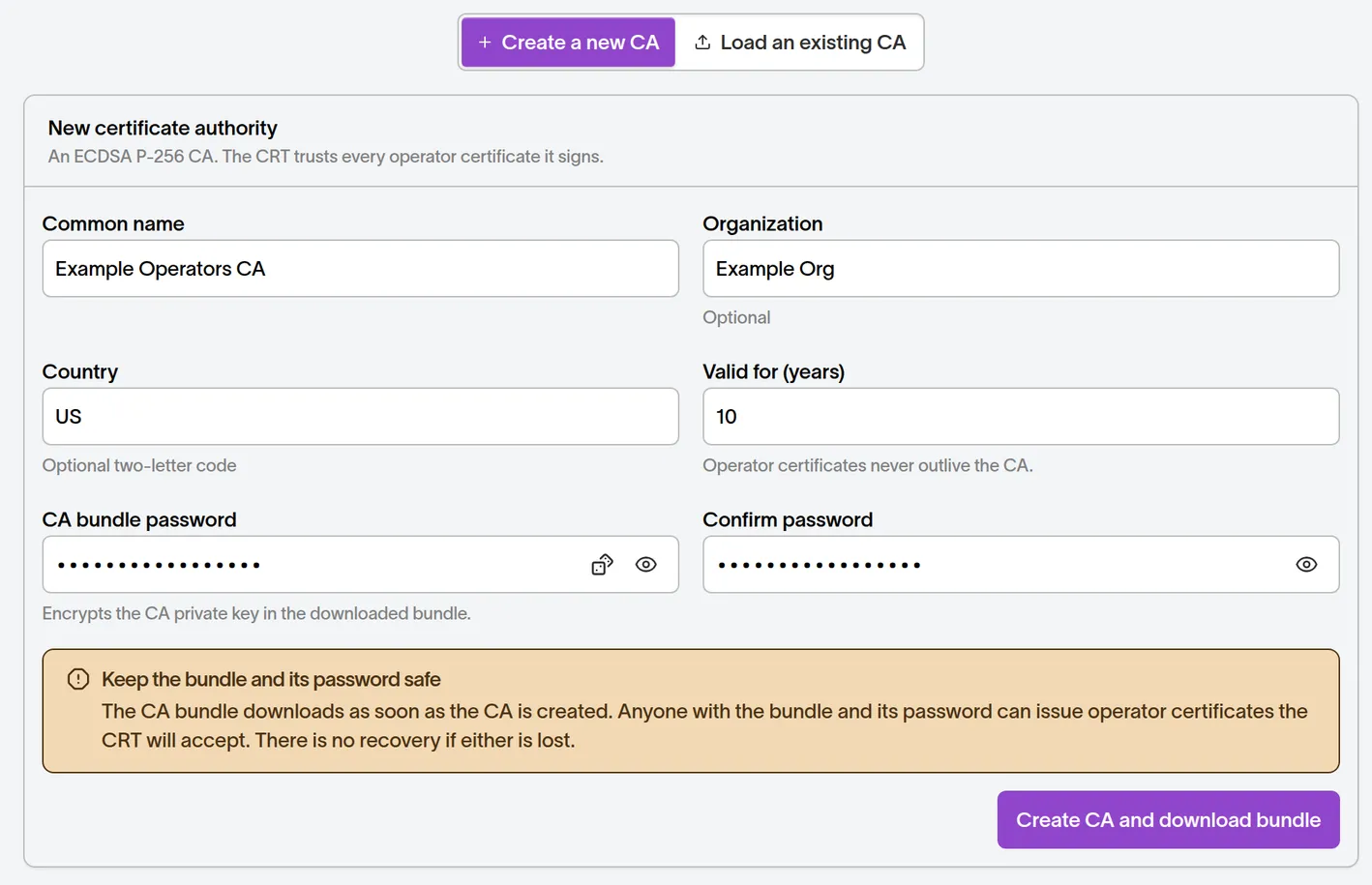
-
The tool switches to Overview. Copy the CRT “CA” value with the copy button next to it. This goes into the Base64 Certificate that signs authorized operators of the system field when you deploy the CRT.
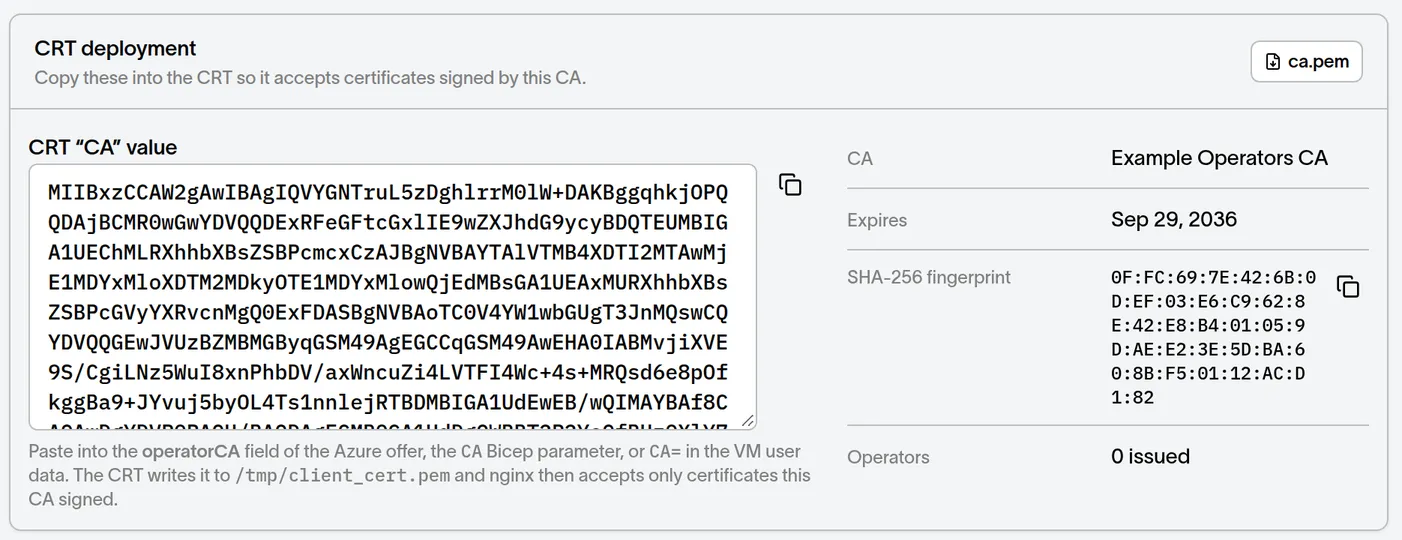
| File | Contents | Who gets it |
|---|---|---|
<ca>.ca.pfx | CA certificate and key, plus the list of operators issued | Whoever administers the CA only |
<ca>.ca.pem | CA certificate | Anyone |
| CRT “CA” value | CA certificate, base64 DER | The CRT deployment |
Create operator certificates
-
With your CA open, select Operators. If you closed the tab since creating the CA, select CA, use Load an existing CA with the saved bundle and its password, then Open CA.
-
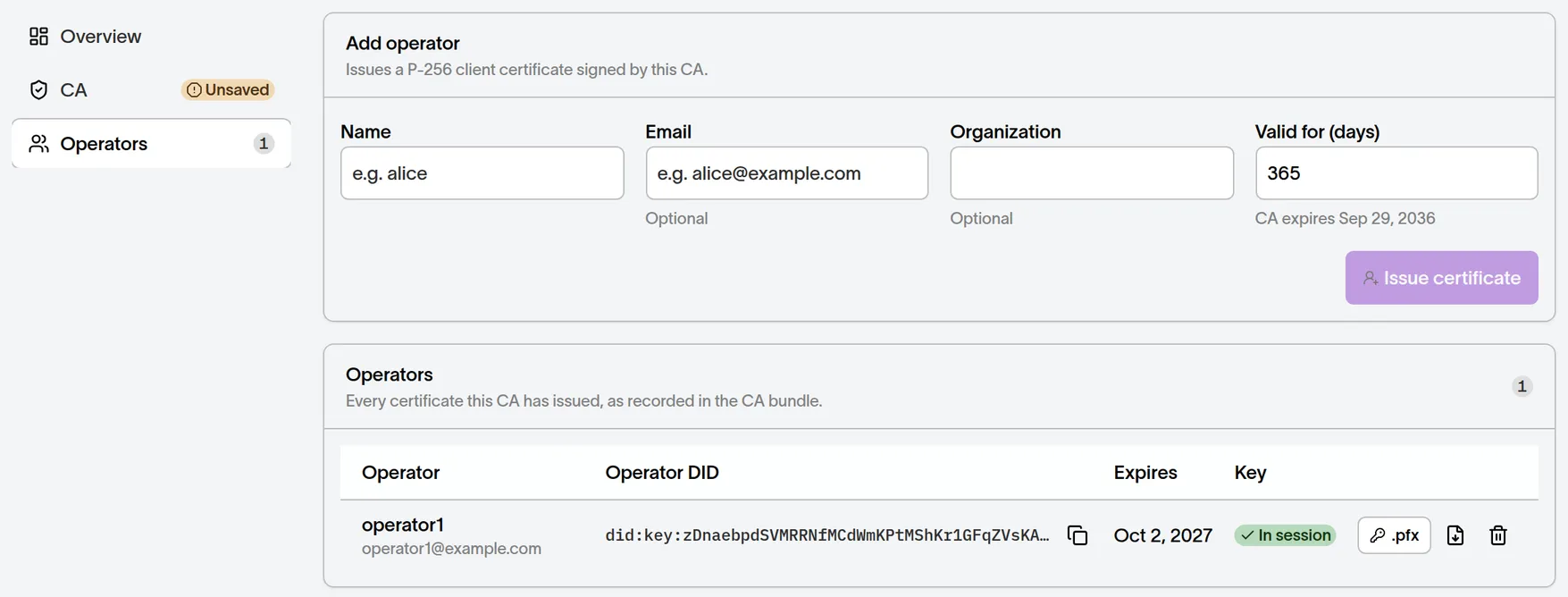
Under Add operator, enter the operator’s Name, and optionally an Email and Organization. Operator certificates are valid for 365 days unless you change Valid for (days). Select Issue certificate.
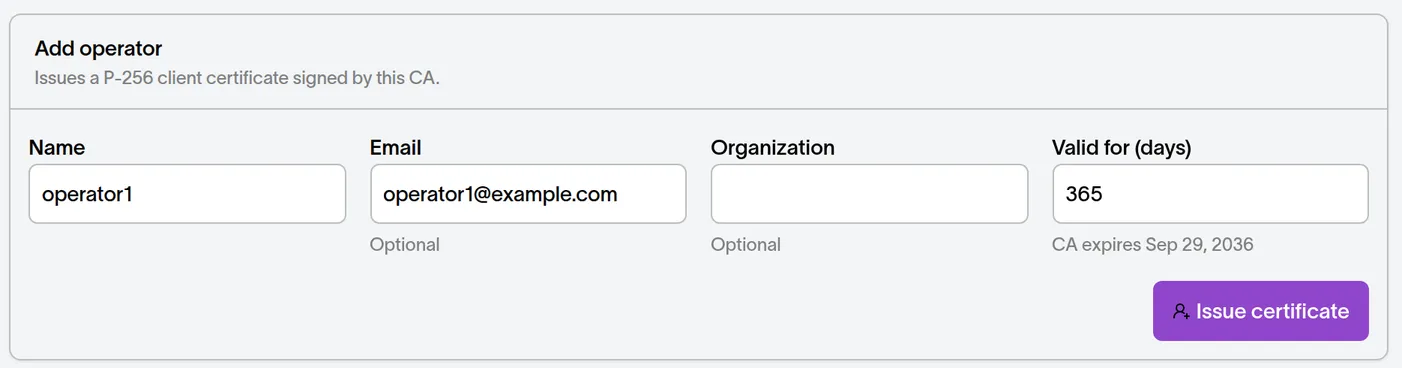
-
A dialog opens with a random Import password already filled in. Keep it or replace it, note it down, and select Download .pfx. Send the
.pfxand its password to the operator through separate channels.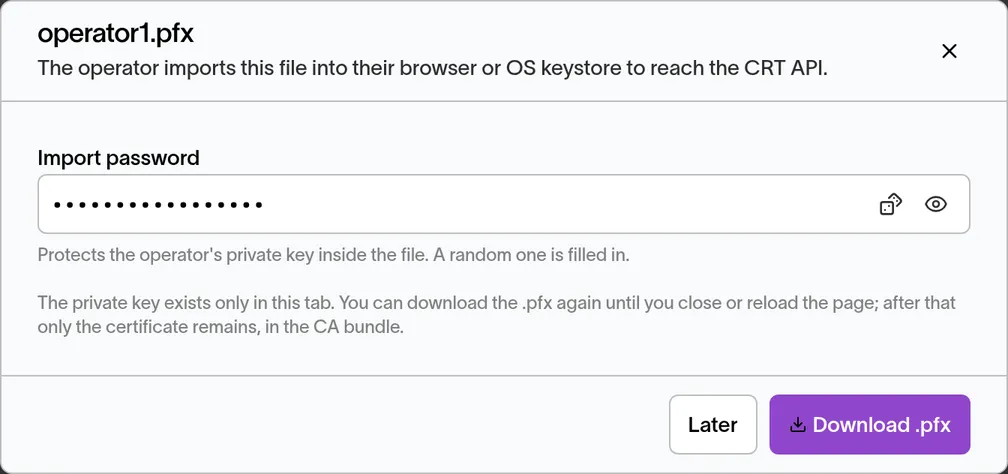
The operator’s private key exists only in this tab. You can download the
.pfxagain from the operator’s .pfx button until you close or reload the page. -
The operator now appears in the Operators list with their Operator DID, the identity the CRT records for every job they start. The CA entry in the sidebar shows Unsaved: select CA, then Save CA bundle to save a bundle that also lists this operator.
| File | Contents | Who gets it |
|---|---|---|
<operator>.pfx | Operator certificate and key, with its own password | That operator only |
Install an operator certificate
For the command line
Place the operator’s .crt and .key files where the command line can read them, and point
CLIENT_CERT and CLIENT_KEY at them in your .env file. See
Configure the connection.
For the web console
Import the operator’s .pfx and enter its import password when asked. Where it goes depends on
your browser and operating system: on Windows and macOS, Chrome, Edge and Safari use the operating
system’s certificate store, while Firefox, and Chrome on Linux, keep their own.
Double-click the .pfx to open the Certificate Import Wizard. Choose Current User, enter
the import password, and let the wizard place the certificate automatically. Chrome and Edge
pick it up from there.
To import from PowerShell instead:
Import-PfxCertificate -FilePath .\operator1.pfx -CertStoreLocation Cert:\CurrentUser\My `
  -Password (Read-Host -AsSecureString -Prompt "Import password")
See Microsoft’s Import-PfxCertificate reference. For the wizard with screenshots, see Sectigo’s guide, How to import a certificate to Windows Certificate Manager.
Double-click the .pfx to open it in Keychain Access, choose the login keychain, and enter
the import password. Chrome, Edge and Safari pick it up from there.
Apple’s guide, Import and export keychain items, walks through the same steps with screenshots.
-
Open
chrome://certificate-managerand select Your certificates, then View imported certificates from Linux.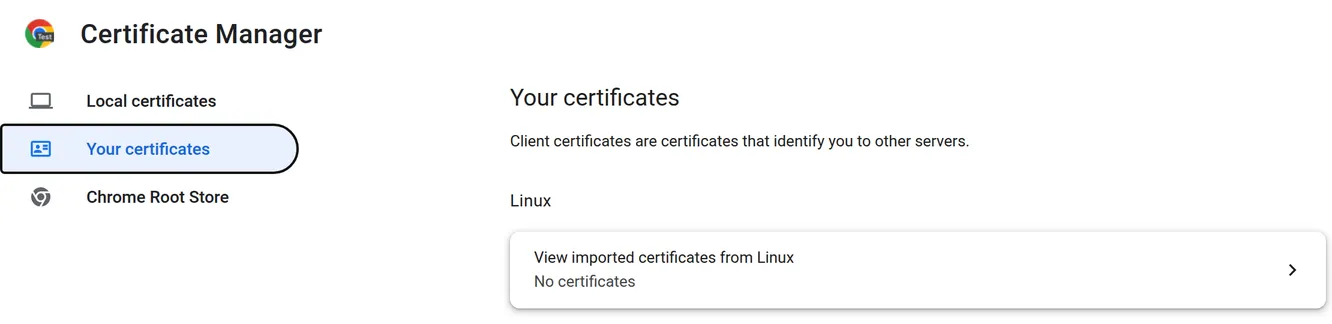
-
Select Import, choose the
.pfx, and enter its import password.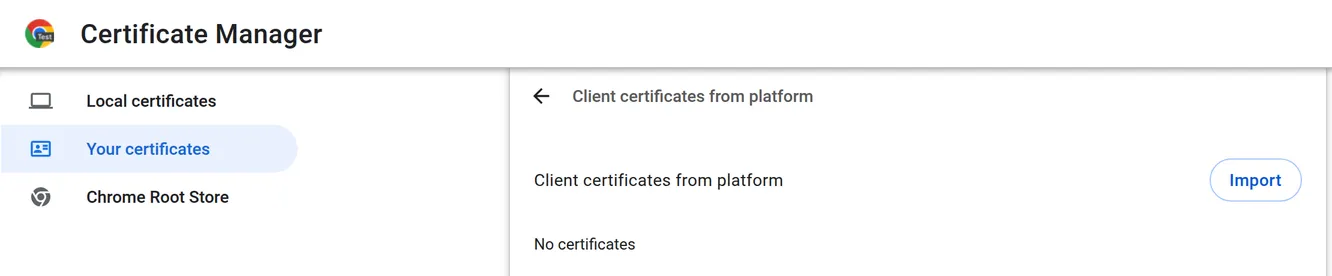
Firefox uses its own certificate store on every operating system:
- Open
about:preferences#privacyand scroll to Certificates. - Select View Certificates, then the Your Certificates tab.
- Select Import, choose the
.pfx, and enter its import password.
SSL.com’s guide, Configuring client authentication certificates in web browsers, shows these Firefox steps with screenshots.
The browser asks which certificate to present the first time you open the web console; pick the one you imported.
Use a certificate with the other interface
An operator can use the same certificate with both interfaces; it only needs converting.
To use a certificate from vcomp-cert-cli in a browser, bundle it as a .pfx. OpenSSL asks for
an import password:
openssl pkcs12 -export -in operator1.crt -inkey operator1.key -name operator1 -out operator1.pfxTo use a .pfx from the web tool with the command line, extract the certificate and key. OpenSSL
asks for the .pfx import password:
openssl pkcs12 -in operator1.pfx -clcerts -nokeys -out operator1.crt
openssl pkcs12 -in operator1.pfx -nocerts -nodes -out operator1.key