
Azure
Deploy a Verifiable Container Runtime as an Azure confidential VM with the Deploy to Azure form.
On Azure, the CRT runs as a confidential VM. Azure owns the hardware and firmware; you choose the region, VM size, storage and operator CA.
Before you start, create your CA and copy its CA value, as described in Operator Certificates (mTLS). You also need an Azure subscription that can create confidential VMs, with enough quota for the VM size you choose. To check or raise your quota, see Microsoft’s guide to increasing VM-family vCPU quotas.
The CRT is deployed with a custom Azure deployment form. It creates a confidential VM from the CRT disk image, and imports that image into your resource group the first time you deploy there.
-
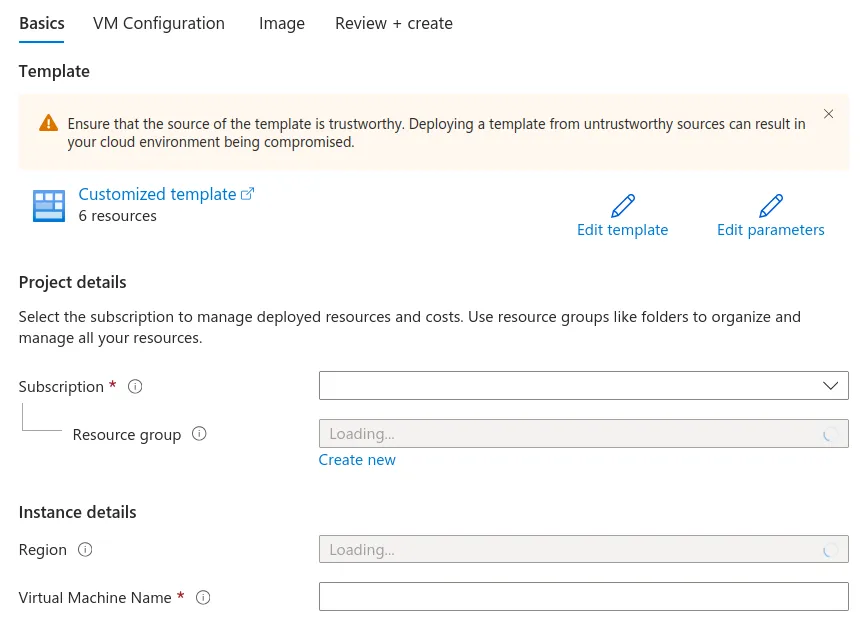
Open the Deploy to Azure form and sign in to the Azure portal if prompted. The form warns you to make sure the template source is trustworthy; that warning is shown for every custom template.
-
On the Basics tab:
- Select a subscription and a resource group. You can create a new resource group or reuse one that already holds a CRT deployment.
- Select a region that offers the VM size you need. The GPU image’s
Standard_NCC40ads_H100_v5size is only available incentralus,eastus2andwesteurope. The CPU sizes are widely available, includingeastusandnortheurope; see Microsoft’s confidential VM options. - Enter a Virtual Machine Name of 3–15 letters, numbers and hyphens. It also prefixes the VM’s network resources.
-
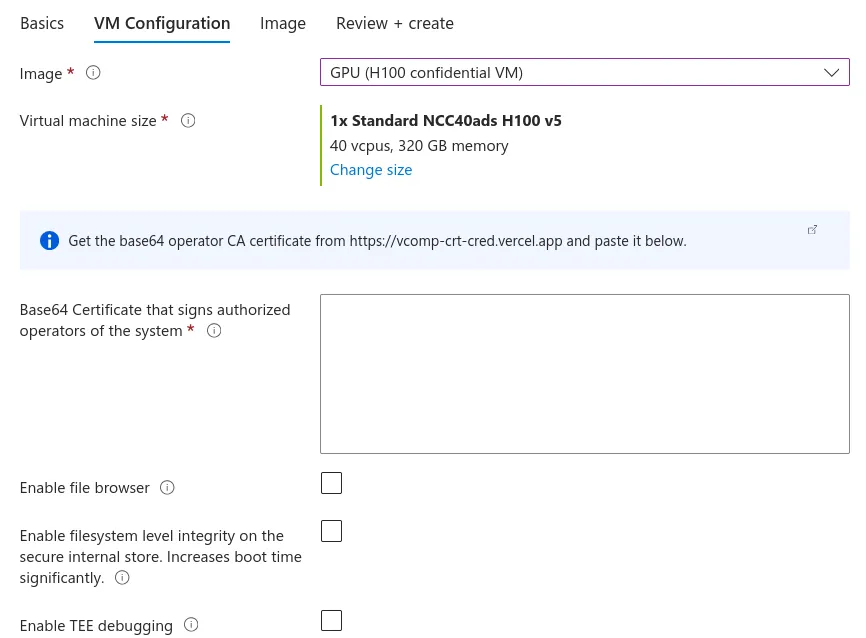
On the VM Configuration tab:
- Image: select CPU (confidential VM), or GPU (H100 confidential VM) for GPU workloads.
- Virtual machine size: keep the recommended size or pick another one from the list. Only
confidential VM sizes are offered: AMD SEV-SNP (
DCads) and Intel TDX (DCeds) for CPU, andNCC40ads_H100_v5for GPU. Don’t pickDCasorDCessizes if they are listed. - Base64 Certificate that signs authorized operators of the system: paste your CA value.
- Select Enable file browser. The file browser is a convenient way to upload inputs and download outputs.
- Leave Enable filesystem level integrity on the secure internal store cleared unless you need it. It adds dm-integrity protection to the encrypted internal store, but makes booting significantly slower.
- Leave Enable TEE debugging cleared. It turns on OS debugging features, which you don’t want on a runtime whose integrity you rely on.
-
On the Storage tab, choose where the CRT’s two stores live. The encrypted internal store (
/internal) holds the containers’ working data and is wiped at every boot, because its key exists only for that boot. The external store (/tmp/external) is kept across reboots on a disk, but not on the RAM disk. Each store can be on:- Local disk: the temporary disk that comes with VM sizes that have a “d” in the name,
such as
DC4ads_v5,DC4eds_v6andNCC40ads_H100_v5. It costs nothing extra. - Data disk: an extra Premium SSD managed disk, created with the VM as
<vm name>-datadisk. Set its size with Data disk size (16–4095 GiB, 128 by default). - RAM disk: no disk; the store uses the VM’s memory. RAM disk size takes a percentage
of the VM’s memory (
50%, the default) or a size such as4G. Leave enough memory for your containers.
The defaults are the local disk for the internal store and the RAM disk for the external store. If the VM doesn’t have the disk you chose, the store falls back to the RAM disk at boot. The default
Standard_DC2as_v5size has no local disk, so the form warns you; pick a “d” size to get one.If both stores are in the same place, that disk or RAM disk is split between them: the internal store gets Internal share of the disk (
80%by default, or a size such as100G) and the external store the rest. A disk is split into two partitions the first time and keeps that layout afterwards, so changing the share later doesn’t resize it.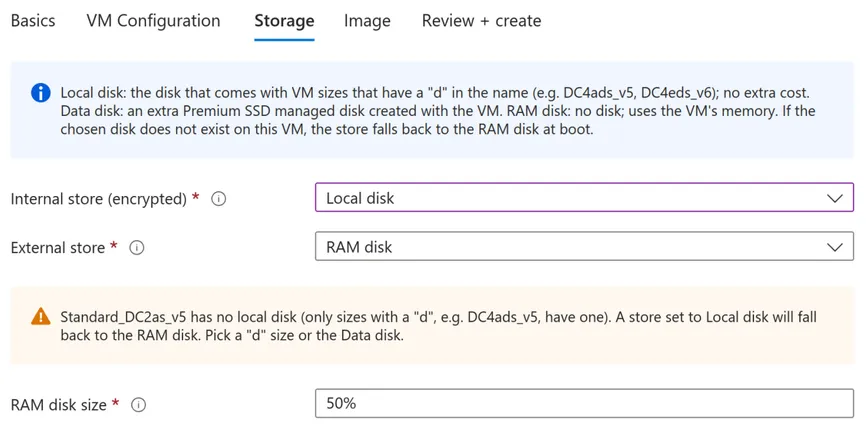
- Local disk: the temporary disk that comes with VM sizes that have a “d” in the name,
such as
-
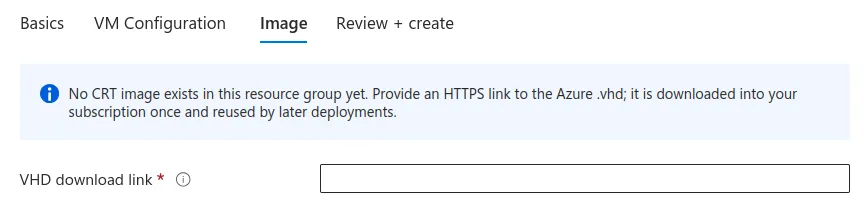
On the Image tab, the form checks whether the resource group already has a CRT image for the image type you selected:
- No image yet: paste the VHD download link from the deployment artifacts page. The link must match the image type you selected. The image is downloaded into your subscription once and reused by every later deployment in this resource group.
- Image already exists: nothing is needed; the newest image is reused. To roll out a newer CRT release, select Upgrade image and paste the link to the new VHD.
-
Select Review + create, then Create.
The first deployment in a resource group takes longer, because it also imports the image. Once
the deployment completes, open its Outputs page and make a note of publicIpAddress. If you
have navigated away, open the resource group, select Deployments, and select the deployment;
see Microsoft’s guide to deployment history. Allow
the VM a few minutes to boot after that. A “Machine agent status is not ready” warning in the
portal is expected.
The deployment opens inbound ports 22, 80 and 443–447 on the VM’s public IP address. The CRT API and the web console listen on 447, and the file browser on 446.
Deploy additional machines
Run the same Deploy to Azure form again for each machine. The first deployment in a resource group imports the CRT image into it, along with an image gallery, a storage account and a managed identity. Later deployments into the same resource group reuse those, so they don’t need the VHD link and finish faster.
To reuse the imported image, keep these the same as the first deployment:
- Subscription and resource group: the image and its supporting resources belong to the resource group. Choosing a different resource group starts over: that deployment imports the image again and needs the VHD link.
- Region: the shared resources were created in the first deployment’s region, and Azure can’t move them. A deployment into the same resource group with a different region fails.
- Image: CPU and GPU have separate images. The first GPU machine in a resource group that so far only has CPU machines (or the other way round) imports its image and needs that image’s VHD link.
These must differ, or can:
- Virtual Machine Name: must be new. It names the VM and its own
-ip,-nsg,-vnet,-nic,-osdiskand (if it has one)-datadiskresources. Reusing the name of an existing VM redeploys that VM rather than adding one, and fails if the image has been upgraded since. - Virtual machine size: any size allowed for the image, in the same region.
- Operator CA: set per machine. Use the same CA value to let the same operator certificates reach every machine, or a different CA to give a machine its own set of operators.
- File browser, filesystem integrity, TEE debugging and storage: set per machine.
On the Image tab, the form should report that the resource group already has an image version, which it will reuse. Leave Upgrade image cleared unless you mean to roll out a new CRT release; the Upgrading an existing VM note above explains what that means for machines already running.
Deploy one machine at a time into a resource group. Two deployments started together can both find no image yet and both try to import it.