
Web Console
Use CRT Control, the browser console served by every CRT, to launch and monitor jobs, move files, and manage images.
CRT Control is the web console for a Verifiable Container Runtime. You use it to start a job, watch it run, move files in and out, and collect the proof that it ran as described.
The CRT serves the console itself, on the same address as its API. The console has no server of its own: your browser talks straight to the runtime, and anything the console remembers, such as compose drafts and the address you connected to, stays in your browser.
Connect
Enter your CRT’s public IP address to fill it in below:
The runtime presents a self-signed certificate and only answers browsers that present an operator certificate signed by your CA, so the first visit takes a little setup in each browser:
-
Import your operator
.pfxinto the browser. See Install an operator certificate. -
Open the console:
texthttps://{{VM_IP}}:447/ -
The browser warns that it does not recognise the runtime’s certificate. Accept the warning to continue.
-
When the browser asks which certificate to present, pick the operator certificate you imported.
The badge at the top reads Connected, and the button at the bottom of the sidebar reads mTLS verified, once the runtime has accepted your certificate. Until then that button reads Connection setup; select it for a guide through the same steps and a Test connection button.
Find your way around
The sidebar lists the screens. A green dot next to Monitor means a job is running.
The top strip applies to every screen:
-
The endpoint pill shows which runtime you are connected to. Select it to switch to another runtime; addresses you have used before are offered again.
-
The status badge reads Connected, Unreachable or Checking….
-
Auto-refresh keeps the page up to date. Turn it off to refresh by hand with ↻ Refresh.
-
Stop project appears whenever a job is running. It asks for confirmation first; anything the job wrote to
/outputand/proofis kept.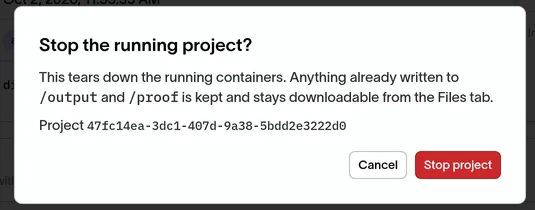
Overview
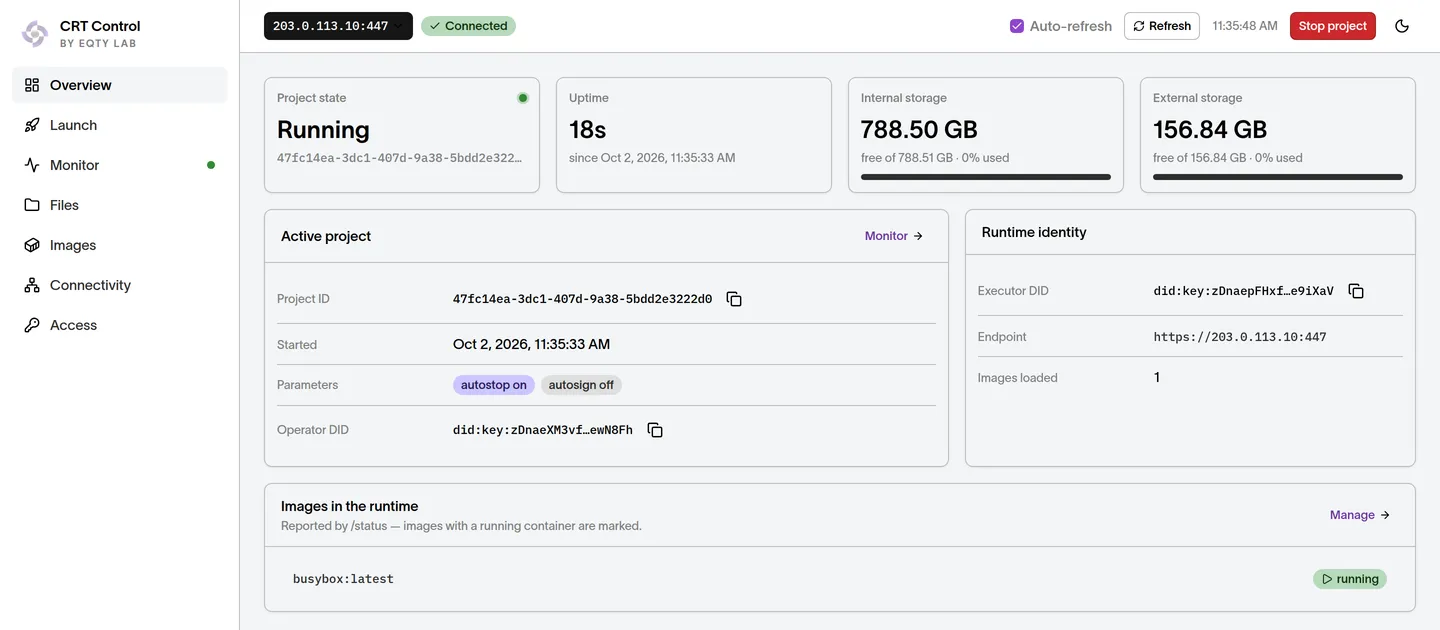
The first screen to open. Tiles show whether a job is running, for how long, and how much space is left on the runtime’s internal and external storage. Below them:
- Active project shows the job’s
project_id, when it started and its start options, plus the Operator and Executor DID: the identities of the operator who started the job and of the runtime that ran it. - Runtime identity shows the executor DID and the address you are connected to.
- Images in the runtime lists the loaded images, marking any that has a running container.
Launch
Write the job as a Docker Compose file in the editor. You can type it, use Open file to load
one, or start from one of the Templates, such as Minimal job (reads /input, writes
/output), a vLLM inference server, or a private-registry example. Save keeps a draft in this
browser under a name, and Download saves it to your computer.
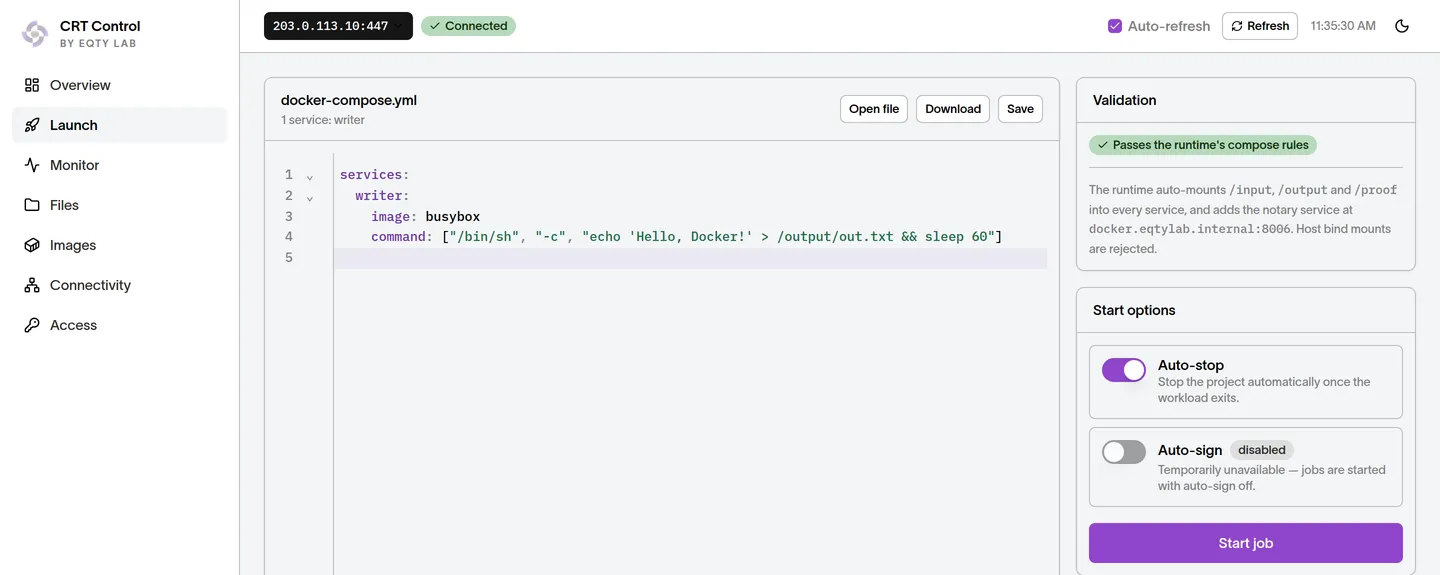
The Validation panel checks the file for the most common problems, and Start job stays disabled until it passes:
- Host folders cannot be mounted, whether absolute (
/etc:/etc) or relative (./data:/data). Named volumes are fine. mounts,devicesandtmpfsare not allowed.- Every service needs an
image. The runtime cannot build images, so push yours to a registry or upload it first.
The runtime applies more rules when the job starts, such as rejecting runtime, privileged and
network_mode. Writing Compose Files lists every option the runtime
accepts and the substitutes for common ones it rejects.
The runtime mounts /input, /output and /proof into every container, and adds
docker.eqtylab.internal so containers can reach the notary. Environment variables whose names
start with VCOMP_SECRET_ are passed to the container without the prefix, and their values are
masked in the attested record. See Secrets for what that does
and does not protect.
Leave Stop when the job finishes on for batch jobs; turn it off for a long-running service such as an API. Sign the run when it finishes writes a signed manifest to the run’s proof folder.
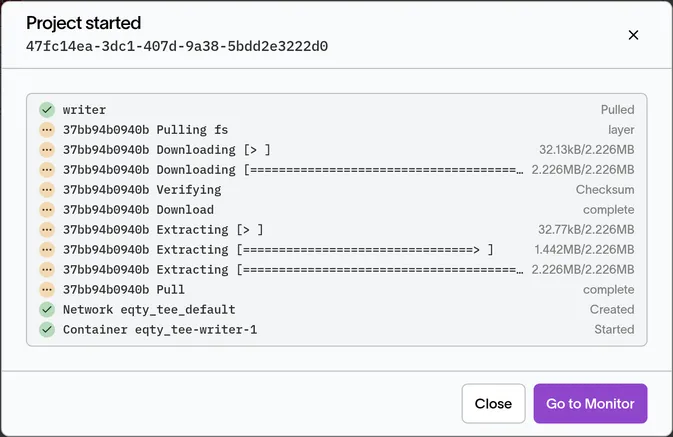
Select Start job. A Project started dialog shows the new project_id and the runtime’s
progress as it pulls images and starts containers; select Go to Monitor to follow the job.
Large images can take a few minutes to pull before the containers start.
While a job is running the editor is locked, because the runtime runs one job at a time; stop the job to unlock it.
Monitor
Five views of the running job:
-
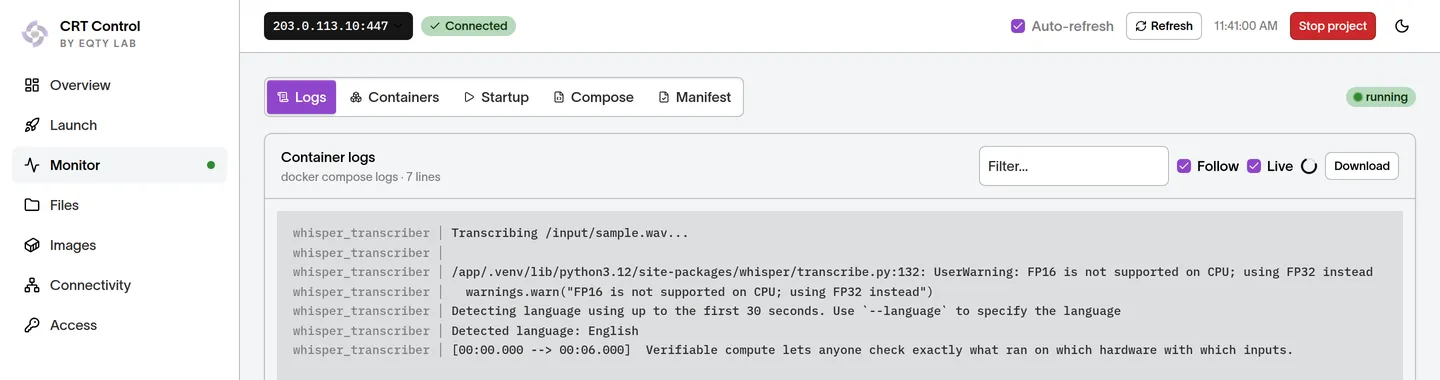
Logs: everything the containers print. Live keeps pulling new output, Follow keeps the newest line in view, Filter narrows the lines shown, and Download saves the log.
-
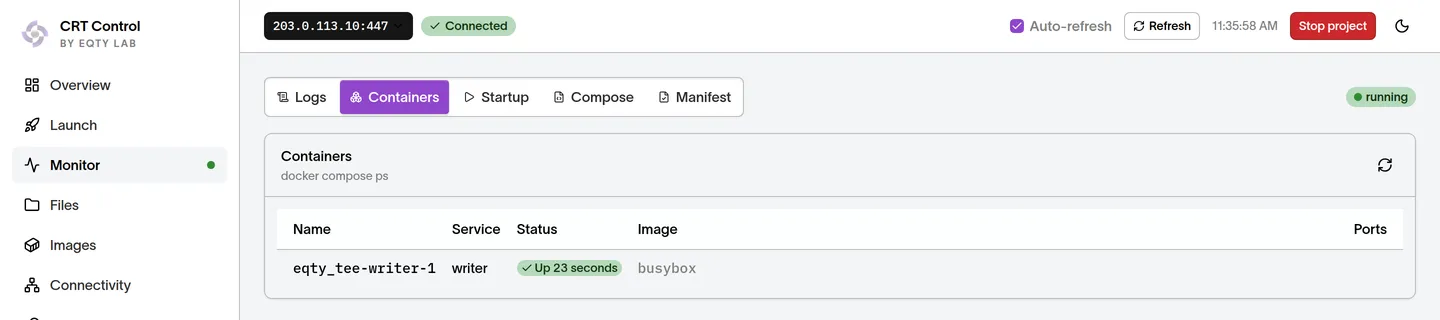
Containers: one row per container, with its status and published ports.
-
Startup: the
docker compose upoutput from starting the job, including image pulls. It is recorded only in the browser that started the job. -
Compose: the compose file the runtime is using. Running is the live file, with secret values readable; this is the only place the console shows them. Attested is the copy in the job’s proof bundle, with secrets masked. Compare the two to make sure nothing sensitive reaches the attested copy.
-
Manifest: the signed attestation manifest,
eqty_manifest.json. Download saves it.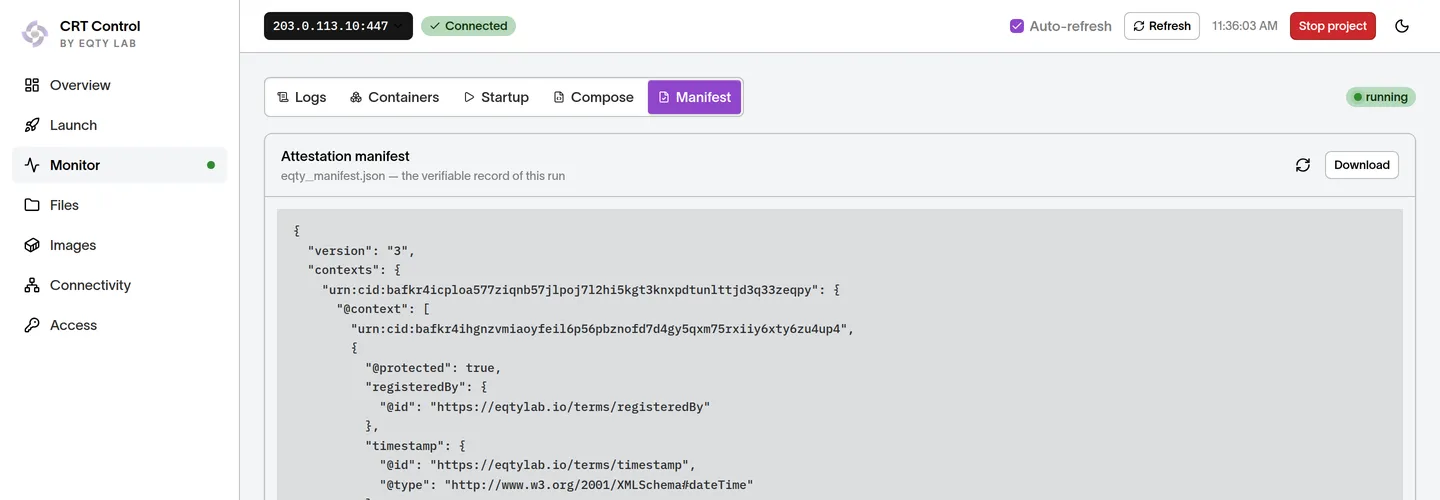
The attested compose file appears once the job has written its proof, so it is empty for the first moments of a run.
Files
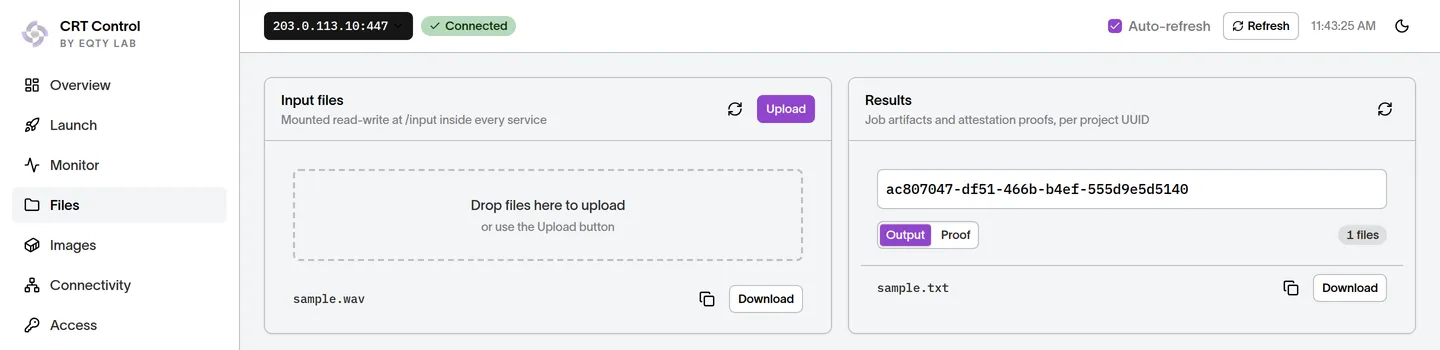
Input files are what jobs read from /input. Drag files onto the upload area or select
Upload. There is no way to delete a file once it is uploaded.
Results are what a job wrote. Enter a project_id (the current one is filled in) and switch
between Output, the files your job wrote to /output, and Proof, the runtime’s records
of the run, such as the sanitized compose file, the attestation report and a timestamp. When you
share results, share the proof files and the manifest with them.
Images
Lists the images loaded in the runtime, marking those in use. Two ways to add one:
- Pull from a registry: name it in the compose file. For a private registry, save its credentials first with Registry login here or on the Access screen.
- Upload a tarball: export it with
docker save -o myimage.tar myimage:tag, select Choose tarball, then Import.
Large images take a while; a progress bar tracks the upload. If the upload keeps failing, expand
Command-line fallback for a resumable curl command, or use
vcomp-crt-api-cli import.
Prune deletes every image no job is using. It asks first, and it cannot be undone.
Connectivity
If your job serves something, publish it on port 8080 in the compose file. The runtime serves it over HTTPS on port 443 of the CRT’s public address; your container does not handle TLS.
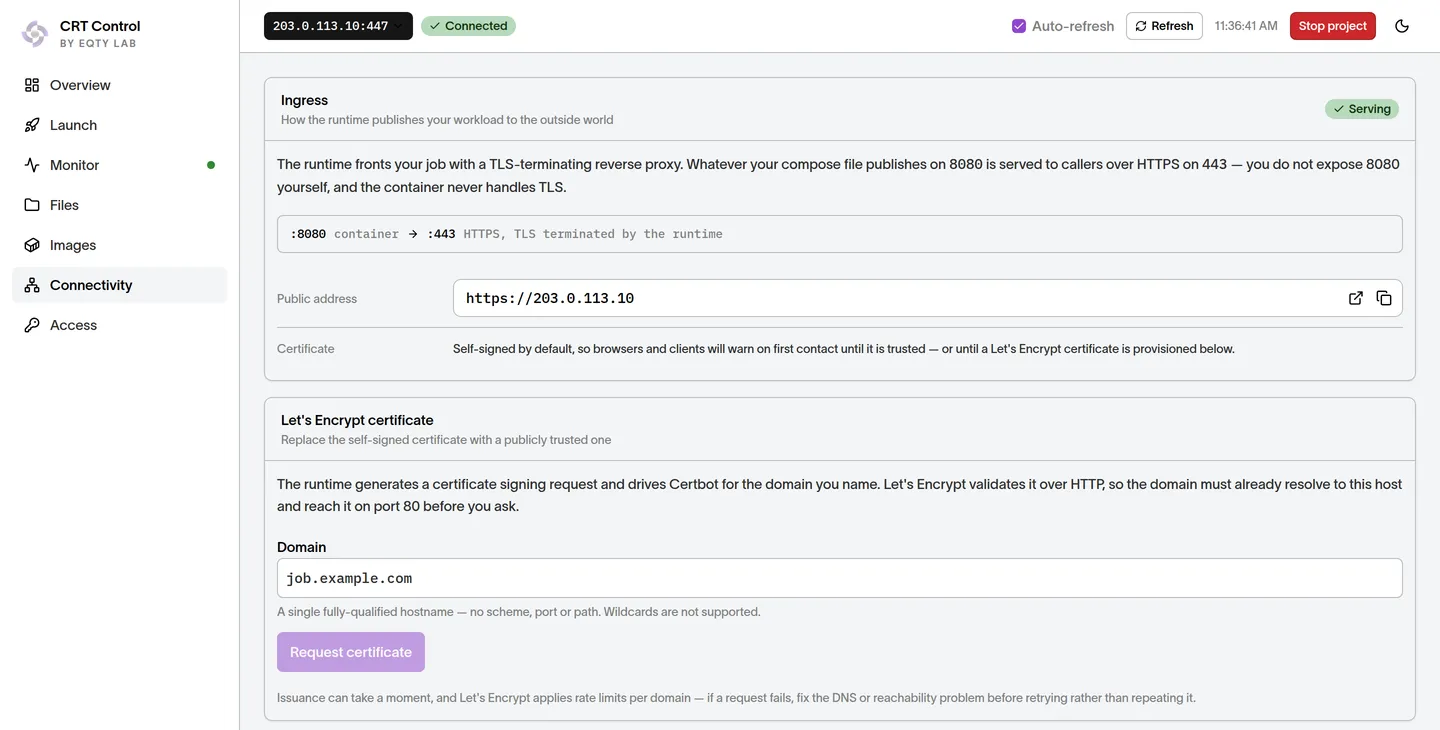
By default that certificate is self-signed. To use a Let’s Encrypt certificate instead, the domain
must already point at the CRT and be reachable on port 80, and a job must be running. Enter the
domain name, such as job.example.com, and select Request certificate. Let’s Encrypt limits
repeated requests for the same domain, so fix any DNS or port 80 problem before retrying.
Access
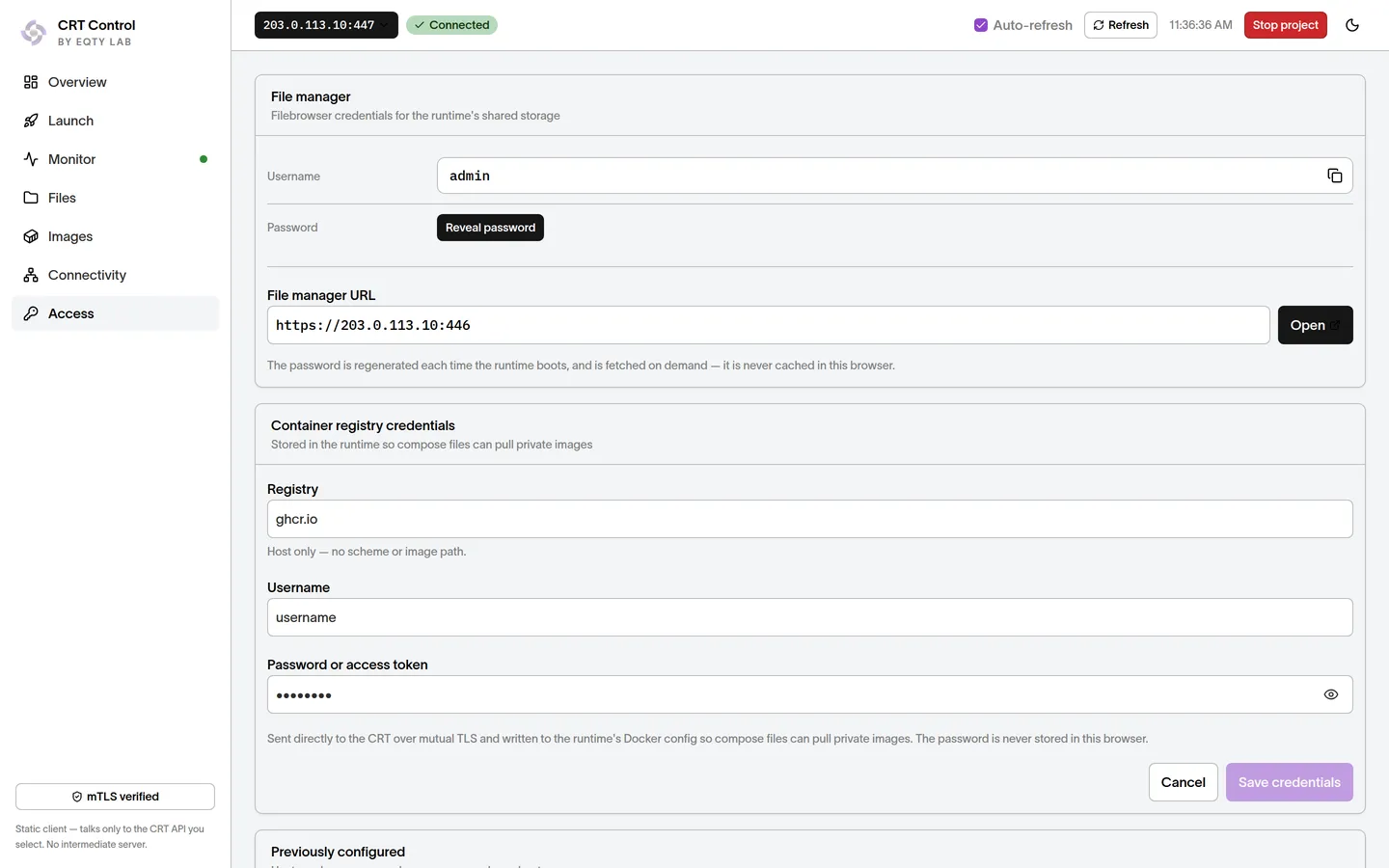
- File manager: select Reveal password for the file browser password, then Open ↗.
The username is
admin. The password changes every time the runtime restarts. - Container registry credentials: enter the registry host (such as
ghcr.io), a username, and a password or token, then Save credentials. They go straight to the runtime and are not kept in the browser.
Troubleshooting
The badge reads Unreachable. The certificate setup has not been done in this browser, or the address in the endpoint pill is wrong. Select Connection setup at the bottom of the sidebar and work through it.
An error mentions an unreadable response. The runtime answered, but the browser hid the response from the console. This usually means the runtime’s certificate has not been accepted yet, or the runtime returned an error.
Start job is disabled. The Validation panel lists what the runtime would reject.
A job is running but nothing responds. Check Monitor → Containers: a container can exit right after starting. The logs usually say why.